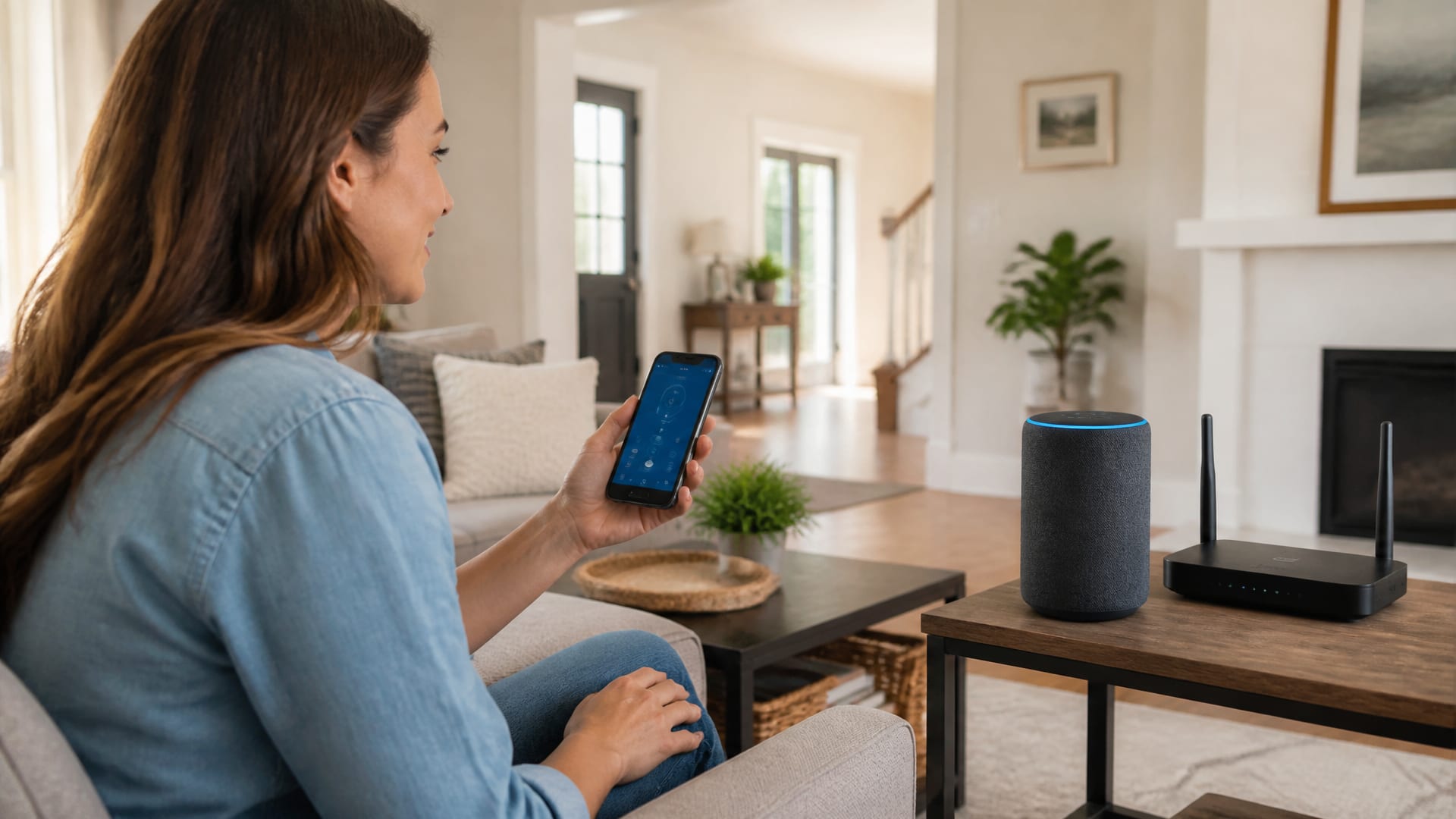
If you need to know how to connect Alexa to Wi-Fi, the quickest solution is usually to update the Wi-Fi settings for your Echo in the Alexa app. This is especially common after changing your router, changing your Wi-Fi password, switching internet providers, or renaming your Wi-Fi network.
If your Alexa is offline, your Echo will not connect to Wi-Fi, or you are wondering how to reconnect Alexa to Wi-Fi, you usually do not need to factory reset the device. Start by changing the network in the Alexa app, then troubleshoot the router or Echo only if the normal connection process fails.
Quick Answer
Open the Alexa app, select Devices, choose Echo & Alexa, select your Echo device, open Settings, find the Wi-Fi network option, and select Change. Choose your new Wi-Fi network and enter the password. Follow the instructions in the app to finish reconnecting the Echo.
How to Connect Alexa to Wi-Fi
The standard way to connect an existing Echo to Wi-Fi is through the Alexa app. Open the app and select the Echo device you want to reconnect, then update its Wi-Fi network from the device settings.
- Open the Alexa app on your phone.
- Tap Devices.
- Select Echo & Alexa.
- Select the Echo device you want to reconnect.
- Open Settings.
- Find the Wi-Fi Network option.
- Tap Change or the equivalent Wi-Fi option shown in your app.
- Select your new Wi-Fi network.
- Enter the Wi-Fi password.
- Follow the remaining instructions shown by the Alexa app.
The exact wording of menu options can change as Amazon updates the Alexa app, but the basic process remains the same: open the device settings, change the Wi-Fi network and follow the setup instructions.
How to Connect Alexa to a New Wi-Fi Network
If you bought a new router or changed your home network, you may need to connect Alexa to a new Wi-Fi network. Your Echo may still be trying to use the old network information.
You normally do not need to remove the Echo from your Amazon account just because the Wi-Fi network changed. Update its network settings in the Alexa app first.
Best first step: Change the Wi-Fi network for the existing Echo in the Alexa app before considering a factory reset.
How to Connect Alexa to Wi-Fi After Changing Your Router
A router change is one of the most common reasons an Echo suddenly appears offline. The new router may have a different network name, password or Wi-Fi configuration.
If you are searching for how to connect Alexa to Wi-Fi after changing your router, use the same Alexa app process above. Select the affected Echo and change its Wi-Fi network to the network broadcast by your new router.
If your new router uses exactly the same Wi-Fi name and password as the previous router, some devices may reconnect automatically. Otherwise, manually update the Echo's Wi-Fi settings.
How to Reconnect Alexa to Wi-Fi After Changing the Password
If you changed your Wi-Fi password but kept the same network name, your Echo may still have the old password saved. In that situation, Alexa may appear offline even though your other devices are connected.
Open the Alexa app and update the Echo's Wi-Fi settings. Select the current or new network, enter the new password and complete the setup.
Do not repeatedly change your router password while troubleshooting. Make sure you know the current Wi-Fi password before starting the Echo setup.
Why Is Alexa Not Connecting to Wi-Fi?
If you are asking why Alexa is not connecting to Wi-Fi, first determine whether the problem is the Echo or the network.
- The Wi-Fi password may be incorrect.
- The Echo may still have the old network saved.
- The router may not have a working internet connection.
- The Echo may be too far from the router.
- Wireless interference may be affecting the connection.
- The router may have separate 2.4 GHz and 5 GHz networks.
- The Echo may need to be restarted.
- The Alexa app may need to be updated.
If multiple devices are offline, the problem may be your network rather than Alexa. If other devices are working normally but the Echo remains offline, focus on the Echo's Wi-Fi settings and connection.
Alexa Is Offline but Wi-Fi Is Working
If your phone, laptop and other devices are connected but your Alexa says offline, the Echo may have lost its saved Wi-Fi connection.
Open the Alexa app and check the Wi-Fi network listed for the Echo. If the network is incorrect, use the Wi-Fi settings to change it.
If the network is correct but the Echo still cannot connect, restart the Echo and check your router. If other devices are also having problems, troubleshoot the internet connection before resetting Alexa.
Echo Won't Connect to Wi-Fi
If your Echo won't connect to Wi-Fi, try these steps in order:
- Confirm the router is working.
- Check that the Wi-Fi password is correct.
- Move the Echo closer to the router.
- Restart the Echo.
- Restart the router if other devices are also having problems.
- Check whether your router has separate 2.4 GHz and 5 GHz networks.
- Update the Wi-Fi settings in the Alexa app.
- Reset the Echo only if the other steps fail.
If your router broadcasts separate 2.4 GHz and 5 GHz network names, trying the other supported network can help identify a connection problem.
Alexa Wi-Fi Problems After a Power Outage
Sometimes an Echo does not reconnect normally after a power outage. Before changing anything in the Alexa app, check whether your router has fully restarted.
If your phone and other devices have internet access but the Echo remains offline, restart the Echo and check its Wi-Fi settings in the Alexa app.
To restart the Echo, disconnect it from power, wait about 30 seconds, and reconnect it. Give the device enough time to start before trying the setup again.
Alexa Wi-Fi Setup Not Working?
If the normal Alexa Wi-Fi setup process does not work, troubleshoot the connection instead of immediately performing a factory reset.
1. Check the Alexa App
Make sure you are signed into the Amazon account associated with the Echo and that you are using the current Alexa app.
2. Check Your Phone's Wi-Fi
Connect your phone to the Wi-Fi network you want the Echo to use when the app asks you to select the network.
3. Restart the Echo
Disconnect the Echo from power, wait about 30 seconds, and reconnect it. Give the device time to start before trying the setup again.
4. Restart the Router
If other devices cannot access the internet, restart the router or modem and wait for the connection to become stable.
5. Check Wi-Fi Bands
If your router uses separate 2.4 GHz and 5 GHz network names, try the other supported network if the Echo cannot connect.
6. Try Setup Again
Return to the Alexa app and update the Echo's Wi-Fi settings.
How to Reset Echo and Reconnect to Wi-Fi
A factory reset should be a last resort, not the first troubleshooting step. Resetting an Echo removes its current setup and means you will need to configure the device again.
If you have already tried changing the Wi-Fi network in the Alexa app, restarted the Echo, confirmed the router works and checked the Wi-Fi password, a reset may be appropriate.
The reset procedure differs between Echo models. Do not rely on a reset combination intended for a different model. Check the instructions for your exact Echo model before performing a factory reset.
What If Alexa Still Will Not Connect?
If the Echo still will not connect after the normal troubleshooting steps, test whether the issue is specific to your home router.
A phone hotspot can sometimes be useful for troubleshooting setup problems. If the Echo connects through another network but not your home network, the router or Wi-Fi configuration is more likely to be the problem.
If multiple devices are experiencing internet problems, contact your internet service provider because the problem may be with the network itself.
Alexa Wi-Fi Troubleshooting Checklist
- Check that the router has internet access.
- Check the Wi-Fi password.
- Open the Alexa app.
- Select the correct Echo device.
- Check the Wi-Fi network listed for the Echo.
- Change the Wi-Fi network if it is incorrect.
- Restart the Echo.
- Restart the router if necessary.
- Move the Echo closer to the router.
- Check 2.4 GHz and 5 GHz networks.
- Reset the Echo only as a last resort.
Frequently Asked Questions
How do I connect Alexa to Wi-Fi again?
Open the Alexa app, go to Devices, select your Echo, open its settings and choose the option to change the Wi-Fi network. Select your network and enter the password.
How do I connect Alexa to a new Wi-Fi network?
Use the Alexa app to change the Wi-Fi network for your Echo. Select the device under Echo & Alexa, open its settings, choose the Wi-Fi option and follow the setup instructions.
How do I connect Alexa to Wi-Fi after changing my router?
Open the Alexa app and update the Wi-Fi settings for your Echo. A new router can have a different network name or password, so the Echo may need to be connected to the new network manually.
Why is Alexa not connecting to Wi-Fi?
Common causes include an incorrect password, an old saved Wi-Fi network, router problems, weak signal, interference or Wi-Fi configuration issues. Check the router and Echo separately to identify which one is causing the problem.
Why is Alexa offline after changing my router?
The Echo may still be trying to connect to the old router or old Wi-Fi credentials. Update its Wi-Fi network in the Alexa app.
How do I reconnect my Echo to Wi-Fi?
In the Alexa app, select Devices, choose Echo & Alexa, select your Echo and open its Wi-Fi settings. Choose Change and follow the instructions to connect it to the correct network.
Can Alexa connect to 2.4 GHz Wi-Fi?
Yes. Echo devices support common 2.4 GHz and 5 GHz home Wi-Fi networks using supported wireless standards.
Should I reset Alexa if it will not connect to Wi-Fi?
Not immediately. First check the router, Wi-Fi password, Echo location, Alexa app and Wi-Fi settings. Reset the Echo only when normal troubleshooting and reconnecting do not solve the problem.
Can I connect Alexa to Wi-Fi using a phone hotspot?
A phone hotspot can be useful for troubleshooting setup problems. If the Echo connects to the hotspot but not your home Wi-Fi, your router or home network configuration may need further troubleshooting.
Final Word
If you are trying to connect Alexa to Wi-Fi, start with the Alexa app instead of resetting the Echo. After a router change, password change or internet-provider switch, update the Echo's Wi-Fi network and follow the setup instructions.
If Alexa is offline or your Echo won't connect to Wi-Fi, check the router, password, Wi-Fi band and device location. Restart the Echo and router when necessary, and keep a factory reset as the final option.
For more practical smart-home troubleshooting guides, explore more Smart Home Technology & Appliance Solutions .
Comments
Post a Comment
💡 You don't need an account! Select "Name/URL" or "Anonymous" from the dropdown to post.