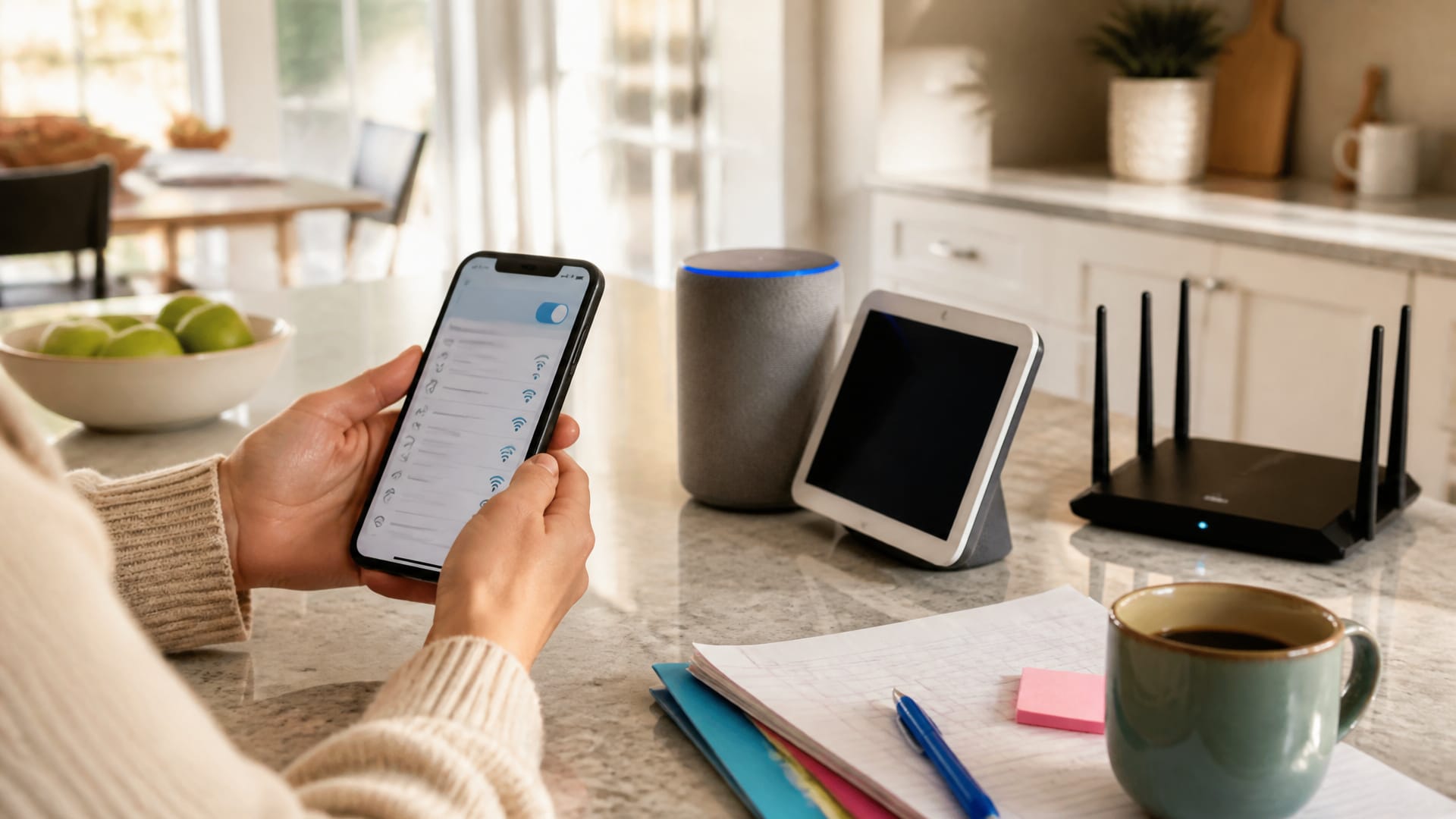
To reset smart speaker after wifi change settings, do not immediately perform a hardware wipe. Connect your smartphone to your new Wi-Fi network, launch your companion management app (Google Home, Apple Home, or Alexa), select the offline device, and navigate to Device Settings to update its network credentials. Only perform a full factory smart speaker reset if the device refuses to appear in the app after rebooting your router and speaker.
You can usually reset smart speaker after wifi change configurations simply by updating network settings in your companion app, not by wiping the whole device. Start with your phone, your router, and the device app. A hardware smart speaker reset or full smart display reset is only needed if standard wifi reconnect procedures fail. If you are troubleshooting how to reconnect a smart speaker after changing wifi, how to reset a smart display after router change, or asking why won't my smart speaker reconnect to wifi, this step-by-step walkthrough will get your smart ecosystem back online fast.
Top Reconnection Pitfalls
- Factory resetting hardware prematurely and losing saved device pairings and automations.
- Attempting to reconnect smart speaker hardware before verifying the new SSID and password.
- Operating from the wrong home profile, secondary account, or an outdated mobile app.
- Failing to perform a full 30-second power cycle on both your wireless router and the speaker.
- Overlooking dual-band limitations when legacy devices require a dedicated 2.4 GHz network band.
How Do I Reset My Smart Speaker After Wi-Fi Changes?
Reopen your device app, connect your phone to the new Wi-Fi, and update the speaker or display from there first. If that fails, power-cycle the router and the device, then try setup again. Only use a factory reset if the app cannot locate the hardware or if the status repeatedly shows smart speaker offline after several attempts.
- Verify Network Broadcast: Ensure your new wireless router is active, connected to the internet, and broadcasting the correct SSID.
- Match Smartphone Network: Connect your mobile phone or tablet to the identical new Wi-Fi network you want your smart device to join.
- Launch Management App: Open the companion platform for your device, such as Google Home, Apple Home, or Amazon Alexa.
- Locate Hardware Settings: Select the offline speaker or smart display and open its Device Settings menu.
- Update Network Credentials: Follow the on-screen network migration prompts. Both Google and Apple provide dedicated network transition pathways for their smart displays and audio gear (Google Home & Nest Wi-Fi Help; Apple Support: HomePod Network Solutions).
- Power Cycle Equipment: If the unit fails to reconnect, unplug your internet router for 30 seconds, restart it completely, and cycle power to the speaker.
- Perform Factory Reset as Last Resort: If the app still cannot discover the device, initiate a factory reset per manufacturer hardware instructions before repeating setup (Google Nest Factory Reset; Apple HomePod Reset Guide).
Most households do not need to rebuild their entire connected layout. Pointing the device at the updated gateway solves connection drops nine times out of ten.
Mistake #1: Initiating a Factory Reset Before Checking the App
The Fix
A physical factory reset completely erases the unit's onboard flash memory. That is why users lose custom names, speaker pairs, equalizer preferences, and assigned rooms. On a Google Nest Mini, Apple HomePod, or Echo Dot, resetting too soon turns a simple 3-minute network update into an exhausting 30-minute re-onboarding project.
Always attempt an app-based reconnection first. The Google Home app includes a direct flow to update Wi-Fi credentials without purging your setup. For HomePods, the Apple Home app surfaces an alert that allows you to migrate the speaker to your iPhone's current network with a single tap. If your mobile software can still communicate with the speaker over Bluetooth or local ad-hoc discovery, keep your existing configurations intact.
Mistake #2: Running the Setup App While Phone Is on the Old Network
The Fix
Your mobile device and smart assistant must communicate over the exact same frequency and subnet during initial provisioning. If your phone automatically falls back to mobile cellular data, connects to a guest portal, or clings to a decommissioned router profile, the setup utility cannot discover the unit. This mismatch is the primary reason users struggle with how to reset a smart display after router change procedures.
Open your smartphone Wi-Fi panel and manually verify that you are connected to the primary home SSID. Ensure you enter your wireless security key carefully, avoiding capitalization errors. If you recently replaced your gateway following an ISP migration in areas like Phoenix, Atlanta, or rural Ohio, ensure the gateway has finished its line registration before initiating pairing.
Mistake #3: Skipping a Full Hardware Power Cycle
The Fix
Modern routers cache MAC addresses and legacy IP assignments, which can block previously authenticated devices from establishing a fresh handshake. The remedy is simple: disconnect the router power adapter for 30 seconds, reconnect it, and allow 2 to 3 minutes for the system to complete its boot sequence and obtain a wide-area IP. Once the network is stable, reboot your smart speaker or smart display.
If your home relies on a mesh topology—such as Eero, Google Nest Wifi, or TP-Link Deco—always reboot the gateway node first, followed by downstream satellite nodes. If a speaker is positioned across several interior walls, temporarily relocate it closer to the main router node during the network setup phase.
Mistake #4: Overlooking Dual-Band Frequency Mismatches
The Fix
Frequency band incompatibility is a frequent culprit behind why smart assistants drop offline. Many compact smart speakers and displays incorporate low-power network chips engineered exclusively for 2.4 GHz channels, which penetrate drywalls and structural framing better than high-frequency bands. Modern tri-band and Wi-Fi 6 gateways frequently merge 2.4 GHz and 5 GHz signals under a single unified SSID through band-steering technology, which can prevent older speakers from completing a handshake.
If discovery repeatedly stalls, open your router's companion app or administrative dashboard and temporarily separate your network frequencies into distinct SSIDs (for example, "HomeNetwork_2.4" and "HomeNetwork_5"). Point your smartphone and speaker to the 2.4 GHz channel to finalize onboarding, after which you can re-enable seamless band steering if desired.
Mistake #5: Assuming Automations and Preferences Are Lost
The Fix
Smart home automations, schedules, and custom voice commands reside in cloud servers linked to your user account, not inside the physical speaker. Knowing how to avoid rebuilding smart home routines comes down to maintaining your original profile. Once the device reconnects to the internet under the same ecosystem profile, your custom routines, wake-word preferences, and linked media services automatically sync back.
However, if a full factory reset becomes necessary, custom speaker groupings and stereo pairs must usually be reconstructed. Before performing a hard reset, take quick screenshots of your custom routine steps and room assignments inside the app to streamline re-pairing.
For more detailed smart home troubleshooting and hardware setup guides, explore more Smart Home Technology & Appliance Solutions tips.
Summary: Core Rules to Keep Your Devices Connected
- Update your network settings inside your companion app before pressing any physical reset pins.
- Ensure your smartphone is actively broadcasting on the target Wi-Fi network before opening setup tools.
- Reboot both your broadband modem/router and the target speaker to clear stale DHCP leases.
- Confirm your smart home device supports your router's active security protocol and frequency band (2.4 GHz vs 5 GHz).
- Archive your room names and automated sequences before performing an emergency hardware reset.
Frequently Asked Questions
Why is my smart display offline?
A smart display generally indicates an offline error because it cannot authenticate with your router due to an updated SSID, a modified security passphrase, or an inactive gateway. Interference from appliances, weak signal strength, or phones operating on mismatched frequency bands can also cause dropped connections. Check your router status first, then verify device settings in your app.
How do I reconnect my device to a new router?
To execute how to reconnect device to a new router, join your mobile phone to the new network, launch the corresponding ecosystem app (such as Google Home or Alexa), select your speaker, and follow the network configuration prompts. If the device does not respond to network reconfiguration, follow standard procedures to reset smart speaker after wifi change via hardware buttons.
Can I keep my routines after changing Wi-Fi?
Yes. Voice automations, custom smart routines, and linked music accounts are tied to your cloud ecosystem account rather than the speaker's local memory. As long as you re-add or reconnect the device under the same account profile, your automated routines will resume functioning without needing to be recreated.
Why won't my smart speaker reconnect to Wi-Fi?
If you are wondering why won't my smart speaker reconnect to wifi, the issue is commonly caused by band-steering conflicts on mesh routers, special characters in network passwords that the device cannot parse, or router firewalls blocking local mDNS discovery. Temporarily enabling a dedicated 2.4 GHz guest network often resolves persistent handshake failures.
Re-establishing wireless connectivity for your smart home devices does not require starting from scratch. By verifying network parameters, performing clean power cycles, and updating configurations inside the app, you can restore full voice control throughout your home quickly and reliably.
Comments
Post a Comment
💡 You don't need an account! Select "Name/URL" or "Anonymous" from the dropdown to post.